HDR Looks Washed Out on Windows: Fix the Grayscale, Not Your Monitor
You turned HDR on and the game went flat and gray instead of bright and punchy. That is a brightness-mapping problem, not a broken monitor — and it has five specific, fixable causes: the SDR slider, an uncalibrated HDR profile, a wrong in-game paper-white value, an RGB range mismatch, or the game never outputting HDR at all. Here is how to tell them apart.
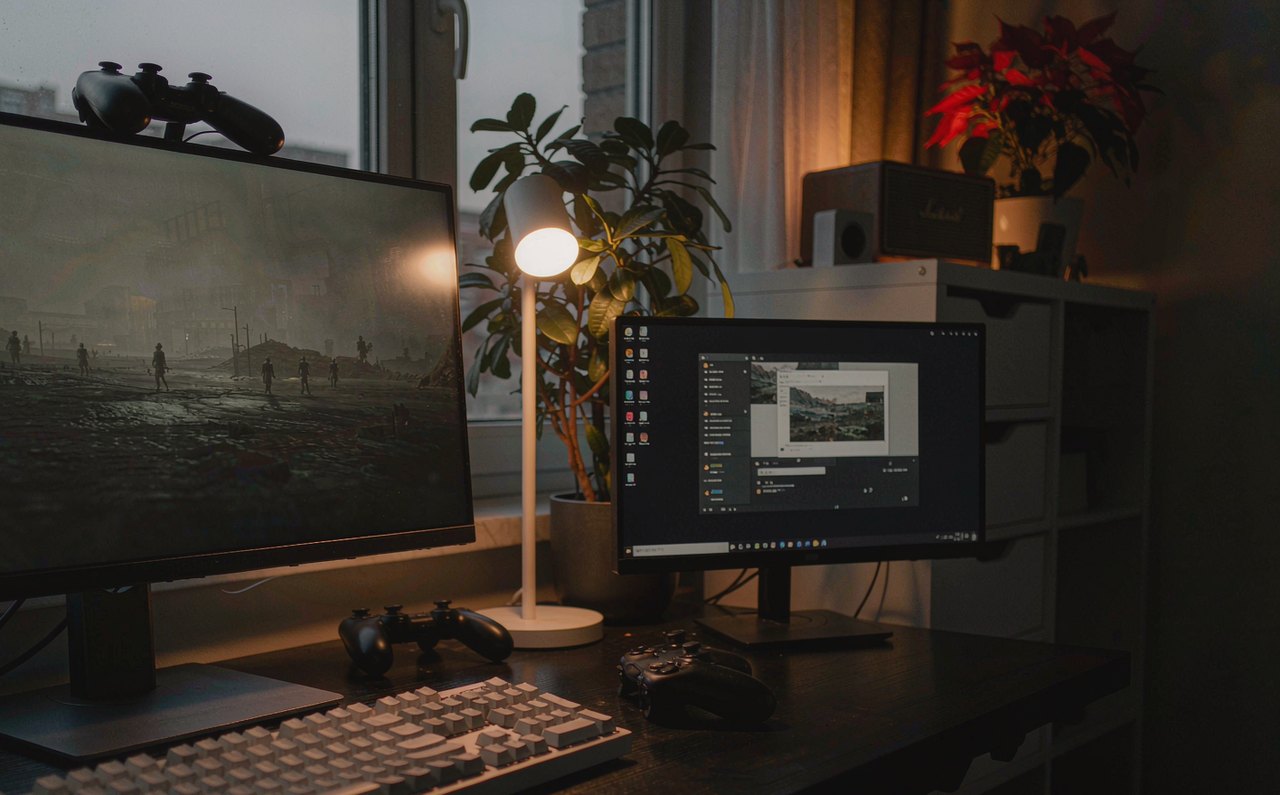
Enabling HDR should make a supported game look brighter and more lifelike. When it instead looks washed out — blacks turned to gray, colors flattened, the whole image like it is behind a thin sheet of frosted glass — the monitor is almost never the problem. HDR is a metadata pipeline: Windows, the game, and the display all have to agree on how brightness numbers map to actual light. When any one link in that chain is misconfigured, the image desaturates. There are exactly five places the chain breaks, and each one has a distinct symptom and a distinct fix. Work through them in order and the guesswork disappears.
Menu names can shift between versions. Windows 11 24H2, GPU driver releases, and game patches occasionally rename or relocate an option, but the settings below have kept the same names for several years. If a path looks slightly different on your machine, look for the same words on the screen you land on.
Step 1: Confirm the game is actually outputting HDR
The most common misdiagnosis is fixing a problem that does not exist. If a game is sending a standard dynamic range (SDR) signal while Windows runs in HDR, the game's image gets tone-mapped through Windows' HDR display pipeline and frequently looks dimmer and flatter than it would with HDR off entirely.
Check it directly: with the game running in fullscreen, press Win + Alt + B. This toggles Windows HDR off and on. Watch the screen. If nothing visually changes when the game is running, the game was never sending HDR — go into the game's own video settings and enable HDR there. If the game is genuinely outputting HDR, Windows' toggle will produce a visible brightness shift, and you can move on to the real fixes below.
One caveat: Auto HDR (Settings → System → Display → HDR → "Auto HDR for SDR content") takes DX11 and DX12 games and injects HDR automatically. It improves some games and flattens others, because it applies one generic curve to everything. If a game looks worse with Auto HDR on, turn Auto HDR off before touching anything else — for pure SDR games, running Windows HDR off entirely is a legitimate final answer, not a defeat.
Step 2: Fix the SDR content appearance slider
Open Settings → System → Display → HDR (or type "HDR" into the Start menu search). Under the HDR profile you will find "SDR content appearance", a slider from 0 to 100. This controls how bright non-HDR content — your desktop, browser, and SDR games running under Windows HDR — appears on the HDR-capable display.
The default of around 50 is calibrated for monitors that can hit roughly 600–1000 nits peak. On a display that tops out lower, the middle setting makes SDR content — including that SDR game you are running under Windows HDR — look conspicuously gray and dim. There is no universal correct value: drag the slider up until white text on your desktop matches how it looked with HDR off. That takes ten seconds, and on many mid-range monitors the right answer lands somewhere in the 60–80 range. Do not chase a number; chase the visual match.
Step 3: Build a proper HDR profile with the Windows HDR Calibration app
Microsoft ships a free Windows HDR Calibration tool in the Microsoft Store, and if you have never run it, run it now. It walks you through three test screens:
- Minimum luminance — darken the pattern until the dark cross in the center is barely visible. This sets your black point, and an incorrectly high value here is a direct cause of gray blacks.
- Peak luminance — brighten until the pattern's details are maximally visible. This sets how far the display is allowed to push highlights.
- Maximum luminance variation — adjust until the brightness difference across the frame is least visible, which tones down aggressive local dimming behavior.
Save the profile, then check in Settings → System → Display → HDR that it is selected as the active ICC profile. A game that looked gray with Windows' generic profile can snap into place with a calibrated one, because the game reads the display's peak and black levels from that profile when it renders its own HDR image.
Step 4: Calibrate in-game paper white
Most games with native HDR expose two or three brightness sliders in their own settings: usually paper white (how bright a white sheet of paper or a menu is) and sometimes peak brightness or game brightness. These interact with Windows' calibration and can overshoot it.
The failure mode is symmetrical: paper white set too high makes the entire image hazy and gray because everything is pushed against the peak; set too low and the game looks dull even though blacks are correct. Start around 250 nits for paper white on a mid-range display, then adjust up or down in steps while looking at a white UI element or a sky. Calibrate the in-game sliders after running the Windows calibration app, not before — otherwise you are calibrating on top of a wrong baseline.
Step 5: Hunt down the RGB range mismatch
If blacks are still gray after the first four steps, the classic remaining culprit is a limited versus full RGB range mismatch. Video signals can encode black as level 16 (limited/16-235, the TV standard) or as level 0 (full/0-255, the PC standard). If the GPU outputs full range but the monitor interprets limited, everything below true black gets compressed upward and the whole image lifts into gray — a textbook washed-out look.
Check the GPU side first:
- NVIDIA: NVIDIA Control Panel → Display → Change resolution → scroll to "Output dynamic range" → set to Full.
- AMD: AMD Software → Settings → Display → Pixel format → RGB 4:4:4 Full RGB.
- Intel Arc: Intel Graphics Software → Display → Color settings → select full range output.
Then check the monitor's own OSD menu for an equivalent "black level", "HDMI range", or "RGB range" setting and make both ends agree. HDMI inputs are the usual offenders because they often default to limited range for TV compatibility; DisplayPort connections default to full far more reliably. If the mismatch only appears over HDMI, that is your answer — and switching the cable or the input assignment can fix it permanently.
When the display itself is the limiting factor
A small number of washed-out HDR cases are hardware, and they have recognizable signatures. Edge-lit local dimming zones that are too few push a visible gray halo around bright objects, which reads as a washed-out image no matter how the software is configured. Aggressive automatic brightness limiting (ABL) dims full-screen bright scenes unpredictably. On such panels, an honest option is to treat HDR as a feature for dark, cinematic games only, and run fast-paced games in SDR with the profile locked — the fixes above will still make SDR cleaner.
None of this tuning affects latency or frame pacing; those are separate problems covered in the input lag guide and the stuttering walkthrough. The point of this five-step order is that HDR desaturation always lives in one specific link of the chain: signal output, Windows' SDR mapping, the calibration profile, in-game paper white, or the RGB range. Once you test them in sequence with Win + Alt + B as your truth test, the gray veil is one of the most fixable picture problems a PC gamer runs into. The full settings and calculators the site maintains are indexed in the tools section, and more display walkthroughs live in the guide archive.