Free Up Space for Games Without Losing Your Saves
Modern games eat 100 GB or more and SSDs fill up fast. Here is how to reclaim space methodically — what to move, what is genuinely safe to delete, and how to keep every save file intact.
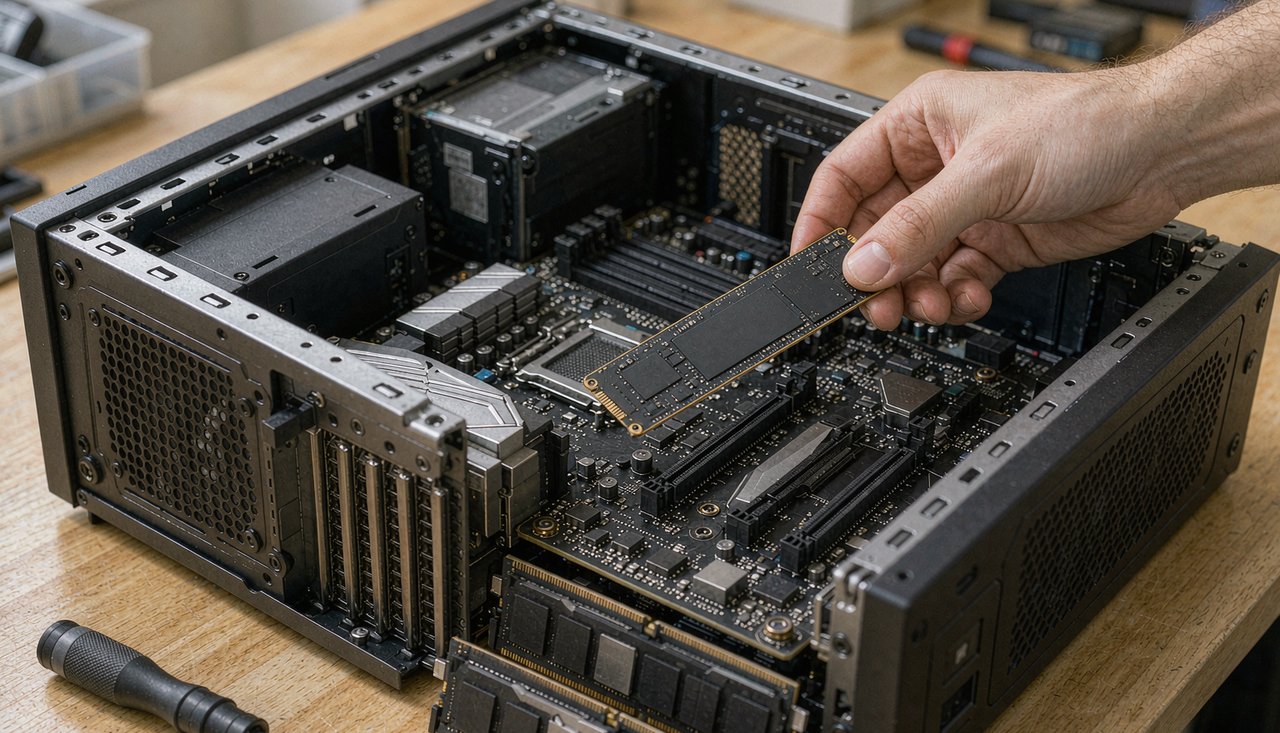
A single modern AAA release can occupy 100–150 GB, which means a 1 TB drive holds six to eight of them alongside Windows and everything else. Space pressure is normal now. The risk is not the uninstall button — it is discovering six months later that a save file lived inside the folder you deleted in a hurry.
This guide gives you an order of operations: secure the saves first, move what can be moved, then delete what is genuinely disposable. Total time for the full routine: about half an hour.
Step one: know where saves actually live
Saves usually sit outside the game's install folder. The four places to check, in order of how often they are used:
| Location | Typical path |
|---|---|
| Documents | %USERPROFILE%\Documents\My Games\<Game> |
| Saved Games folder | %USERPROFILE%\Saved Games\<Game> |
| AppData (local) | %USERPROFILE%\AppData\Local\<Game or studio> |
| AppData (roaming) | %USERPROFILE%\AppData\Roaming\<Game or studio> |
On Steam, open the game's Properties → General and check the Steam Cloud line, then General → "Steam Cloud" storage detail. If cloud sync is confirmed active, the local copy is backed up and you can relax. GOG and the Xbox app have equivalents. Launchers without cloud support are the ones where manual backup matters.
The 10-minute backup: before touching anything, copy the four folders above (only for games you care about) to a USB stick or cloud drive. Saves are tiny — usually a few megabytes each — so this costs almost nothing and removes all risk from the rest of the routine.
Step two: move games instead of deleting them
Both major launchers can relocate an installed game without a re-download:
- Steam: Settings → Storage → select the game → Move. Create a second library on the other drive first if you do not have one.
- Xbox app: Settings → Install options lets you change the default drive; per-title move support varies by game.
- GOG Galaxy: the cog icon next to a game → Manage installation → Change location (support varies).
Moving to a slower drive is a legitimate strategy: competitive titles you play daily stay on the SSD, while the single-player 130 GB story game you boot monthly moves to a hard disk without any consequence beyond slightly longer loads.
Step three: delete what is genuinely safe
Several categories of files are designed to be disposable, and together they often free 20–60 GB:
- DirectX shader cache — Settings → System → Storage → Temporary files. Safe to clear; games rebuild it automatically.
- GPU driver shader caches — under %LOCALAPPDATA%\NVIDIA\DXCache and the AMD equivalent, can grow to several GB.
- Windows.old — up to 30 GB after a major Windows update, auto-deleted after 10 days anyway; Storage → Temporary files can remove it sooner.
- Installer leftovers — old setup executables in Downloads; game launchers you have already installed.
One honest warning about shader caches: the first hour or two after clearing them can feel stuttery while games rebuild what they deleted. That is expected and it settles — do not clear caches right before a ranked session.
Never delete a game folder by hand
Deleting the install directory directly leaves the launcher's database convinced the game is still installed, which blocks reinstallation in some launchers and strands registry entries and redist folders. Always uninstall through Steam, the Xbox app, GOG or Windows' own Apps list. The one exception: a game you have already uninstalled whose leftover folder remains — those orphaned folders are safe to delete, and sorting the leftovers of uninstalled titles is a quick win.
A fifteen-minute monthly routine
- Run Settings → System → Storage → Temporary files and clear the safe categories.
- Check the SSD with your games: below 15 percent free, plan a move.
- Sort Downloads by size; delete old installers.
- For games you have stopped playing: confirm cloud saves are synced, then uninstall through the launcher.
With the saves backed up and the launcher doing the uninstalling, freeing 100 GB becomes a five-minute decision instead of a risky one. Your future self — the one reinstalling that story game for its DLC — will thank you for the backup step.