Controller Not Detected on PC: A Fix for Every Common Cause
Windows ignores your gamepad, or Steam sees it but your game does not. This walkthrough separates the wiring problems from the driver problems from the game problems — with the exact menus to check and a two-minute test that tells you which layer is broken.
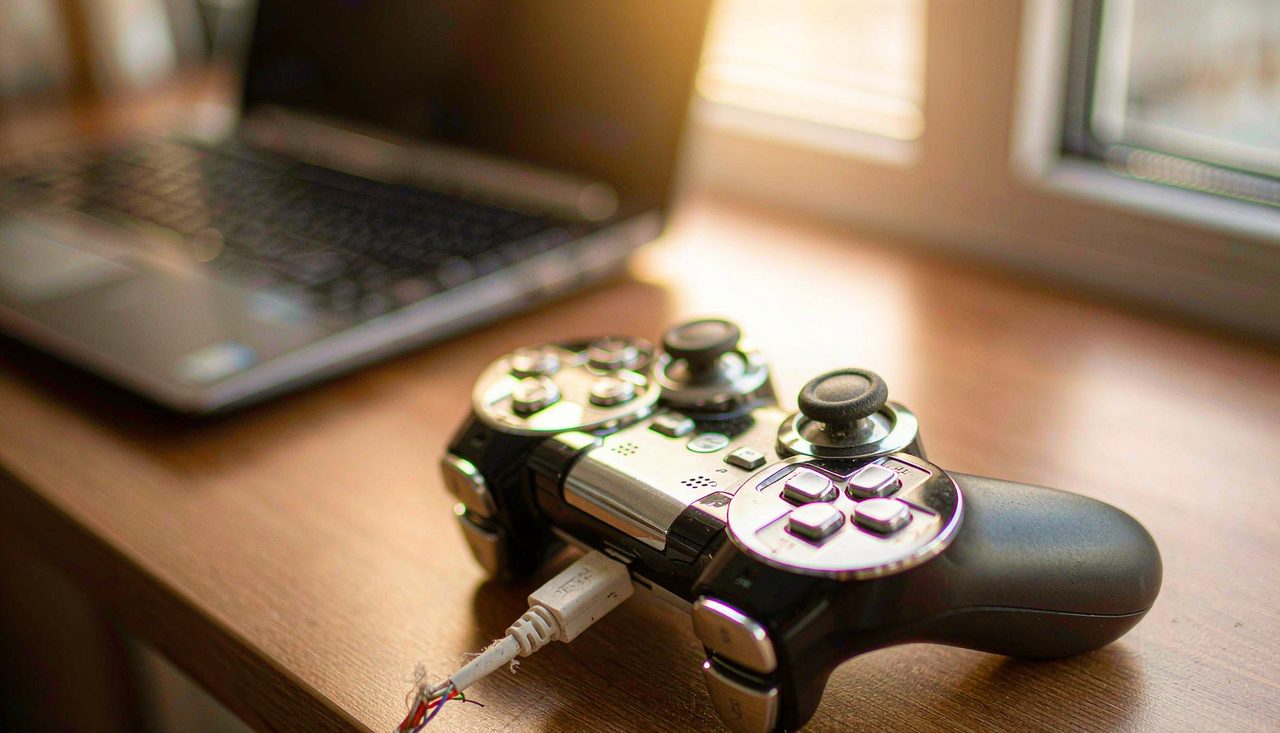
A controller that Windows refuses to see is annoying, but it is also one of the most diagnosable PC gaming problems, because the failure has to live in exactly one of three layers: the physical connection, the driver layer, or the game itself. The trick is to test the layers in order and stop at the first one that fails. Everything below uses tools already built into Windows and Steam, so nothing here costs money or requires downloading driver "helper" software.
Menu names below can shift between versions. Windows 11 24H2, Steam client updates, and controller firmware revisions occasionally rename or move an option, but the underlying settings have kept the same names for years. If a path looks slightly different, look for the same words on the screen you land on.
Step 1: The two-minute test that finds the broken layer
Press Win + R, type joy.cpl, and press Enter. This opens the Windows Game Controllers panel — no install needed. Plug in your controller (or wake it from Bluetooth) and watch the list.
- The controller appears in the list — click Properties, then press buttons and move sticks. Inputs that light up here mean the physical and driver layers are fine, and your problem is in the game or its platform (step 5).
- The controller appears but inputs do not register — a driver or calibration problem (step 4).
- The controller never appears at all — a connection problem (steps 2 and 3).
Do this first. It converts a vague "my controller does not work" into a specific, fixable problem.
Step 2: Rule out the cable and the port
Wired controllers fail at the physical layer far more often than anywhere else, and the failures are sneaky because the connection can look alive while data is not flowing.
- Charge-only cables are the number one cause. Many micro-USB and USB-C cables carry power but no data lines. If the controller charges while plugged in but never appears in joy.cpl, swap to a cable you have confirmed transfers data for another device (a phone syncing photos, for example).
- Plug directly into the PC. Front-panel ports, hubs, monitor USB ports, and keyboard pass-throughs each add a failure point. A rear motherboard USB port on a desktop, or a port on the laptop body itself, is the cleanest path.
- Inspect the connector end. A frayed cable or a loose micro-USB socket on the controller (a well-known weak point on older pads) will drop the connection when the plug moves. Wiggle the plug gently while watching joy.cpl — if the device flickers in and out, the hardware is the culprit, and no software fix will help.
Step 3: Wireless pairing that actually sticks
Bluetooth gamepads accumulate stale pairings that block new connections. Rather than fighting it, reset the pairing from scratch:
- Open Settings → Bluetooth & devices, find the controller in the device list, and choose Remove device.
- Put the controller into pairing mode — on Xbox controllers, hold the pair button on top until the light flashes fast; on PlayStation controllers, hold Share + the PS button together until the light bar flashes.
- Pair again from Settings. If Windows asks for a PIN, that is a sign it is trying to pair as a generic Bluetooth device rather than a gamepad — remove the pairing and retry, because a gamepad should pair without any PIN.
Two wireless gotchas worth knowing: a controller paired to a console will not connect to your PC until it is re-paired or connected by cable, and a nearly empty battery commonly causes "connects, then vanishes" behavior long before the low-battery light gets your attention. Test with a full charge before blaming anything else.
Step 4: Drivers without the mystery software
If joy.cpl shows an error icon or the controller appears as an "Unknown device," open Device Manager (right-click Start → Device Manager) and look under "Human Interface Devices" and "Xbox 360 Peripherals" / "XInput-compatible" entries. Right-click the device and choose Uninstall device, then unplug and replug the controller — Windows rebuilds the driver stack on reconnection, and this fixes the corrupted-driver case surprisingly often.
A calibration pass is also worth two minutes if sticks drift or a trigger reads wrong: in the joy.cpl Properties window, open the Settings tab and run Calibrate, completing the full axis range without touching the triggers when prompted.
Step 5: The controller works — but the game ignores it
This is the most confusing variant, and it almost always comes down to which input API the game expects versus what the controller is providing:
- Check Steam first, even for non-Steam games. Steam can expose any controller to any game it launches. Open Steam → Settings → Controller and confirm the generic support toggle for your pad type (PlayStation, Xbox, or Generic) is enabled. Add the game as a Non-Steam Game and launch it through Steam to test.
- XInput vs DirectInput. Most modern PC games listen for XInput. Older or budget controllers sometimes default to DirectInput mode — many pads have a physical mode switch (a small "X" / "D" toggle on the back or top). The "X" position is what Windows games expect.
- One controller, one input. If a second controller, a steering wheel, or a flight stick is connected, some games grab the first device they find. Disconnect everything else and relaunch.
Quick sanity check: if the controller works in joy.cpl and in one game but not another, the controller and Windows are innocent. The problem lives in that game's input settings or the platform you launched it through — check its in-game controller options before reformatting anything.
A fast order of operations
- Run joy.cpl and identify which layer fails.
- No device: swap to a known data cable, plug into a rear/direct port.
- Wireless: remove the pairing, re-pair, test with a full charge.
- Device present, inputs wrong: uninstall and replug the driver, then calibrate.
- Everything fine except the game: enable Steam controller support, check XInput mode, remove competing devices.
Once it is working, a controller is also a good moment to look at the rest of your latency chain — if competitive feel matters to you, our guide to reducing input lag picks up exactly where this one ends. And if your gamepad problems turned out to be a USB port pattern (front panel dead, rear fine), that same port may be flaky under other loads too — worth flagging before it takes down something more important.